Documentation :: Teachers :: Assignments :: Topics
Topics allow teachers, tutors and instructors to organize assignments on the ChemQuiz.net Dashboard by unit, chapter, or chemistry concept. Assignments are then displayed to students grouped together by topic so that the sequence is more obvious and easier to understand.
Topics are only available to educators with an active site license for the ChemQuiz.net Dashboard. If you have multiple Chemistry teachers at one school, you can share topics with your colleagues. Find out more about the ChemQuiz.net Dashboard and how you can try it out for free!
Create a topic
To create a new topic, follow these steps:
- Go to the ChemQuiz.net Dashboard.
- In the top menu, click on Assignments:

- This will display the Assignments page. In the top menu, click on Topics:

- Click on the pink Create a Topic button:

- Complete the form with the following information:
- Topic name: Enter a name for your topic that will be displayed to students above the table of assignments.
- Topic description: This description is displayed to students under the topic header.
- Add assignments to this topic: Select any assignments that you’d like to assign to this topic. Please note that assignments can be assigned to more than one topic (e.g., “Unit 1: Atomic Structure and Properties” and “1st Semester Review”)
- Topic sort order: This determines the order in which the topics are displayed on the Current Assignments page in the Dashboard. You can also change the topic order by using the drag-and-drop assignment ordering feature on the Change Display Order page (see below).
- Topic is collapsible: This setting helps you focus student attention by setting a topic as “Expanded but collapsible”, “Collapsed”, or “Not collapsible”. The first two options allow students to temporarily show or hide all of the assignments in a topic by clicking a + or − sign next to the topic. Selecting “Not collapsible” will always show all assignments for that topic and students will not be able to temporarily hide them.
- Display topic in these classes: This setting lets you limit topic visibility to specific classes. For example, if you only want “Unit 9: Stoichiometry” to be seen by your Advanced Chemistry classes but not your Physical Science classes, you can check the boxes next to Advanced Chemistry classes so that they see that topic and its associated assignments. If you don’t select any classes, this topic will be displayed to students in all classes.
- Share topic with colleagues: If you have multiple Chemistry teachers at your school using the ChemQuiz.net Dashboard, you can choose to share the topic with your colleagues so that they can also edit it and add assignments to it.
- Activation: Check this box to activate your topic so that it can be used to organize your assignments.
- Click the pink Save New Topic button:

Your topic is now available to your students!
Adding an assignment to a topic
You can also add an assignment to a topic when you either create or edit it. On the assignment form, scroll to the Topics row and check the box next to the appropriate topic(s). For example, if you’re teaching AP® Chemistry, you might use these topics for your class:
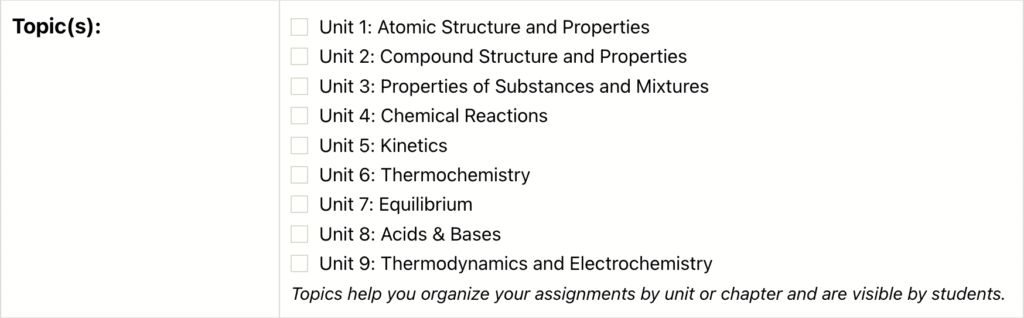
Select the topic(s) you’d like to use and then save your assignment. The assignment will then be displayed under the selected topic(s) on the Assignments and Current Assignments pages in the ChemQuiz.net Dashboard.
Changing topic sort order
You can also change the topic sort order on the Change Display Order page:
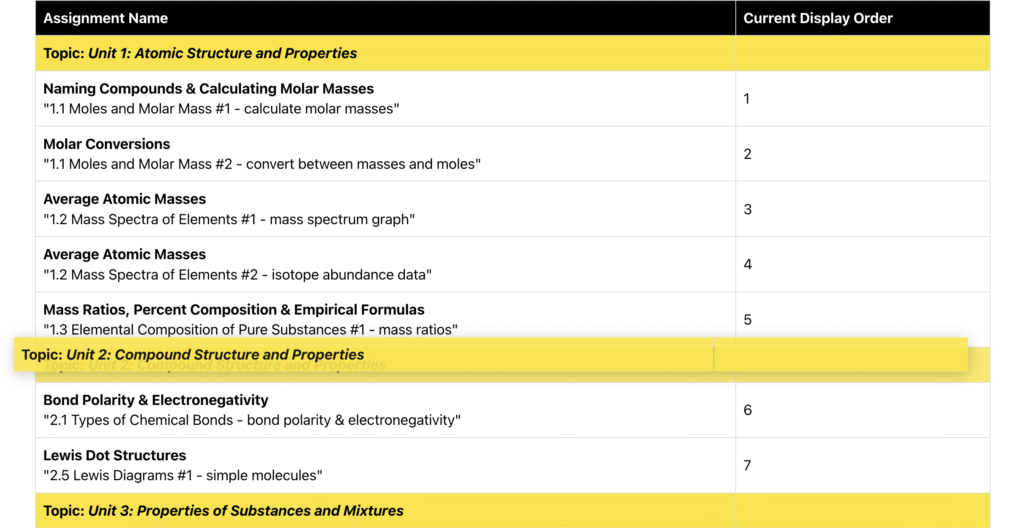
Simply drag and drop the topics and assignments into the order in which you’d like them to be displayed, and then click the pink “Save Assignment Order” button:

If you have any questions about or suggestions for improving the Topics feature, please fill out the Contact form!